Your Activity Feed
The feed is your home screen — a reverse-chronological stream of everything happening in your organization.
When you log in to fellos, the first thing you see is your activity feed. It brings together posts from your discussion groups and a running log of organizational milestones into a single stream, with the newest items at the top. Think of it as your organization's front page.
The feed greets you with "Welcome back, your name" and a Start a discussion… composer at the top — a quick way to kick off a new group post without navigating to Groups first.
What Appears in Your Feed
The feed is a mix of group activity and membership events. Things you'll regularly see:
- Group posts — New topics from the discussion groups you have access to, with author, group name, a preview of the body, and an inline comment composer.
- Member joins — "Name joined Chapter" cards when someone is onboarded.
- Officer appointments — "Name appointed as Role" when someone takes on a new officer position.
- Member type changes — "Name promoted to Type" when members transition between types.
- Deactivations and reinstatements — "Name went on Voluntary Leave" or "Name reinstated" as members leave and return.
Many of these items show an "Approved by Name" line so you can see who signed off on the change.
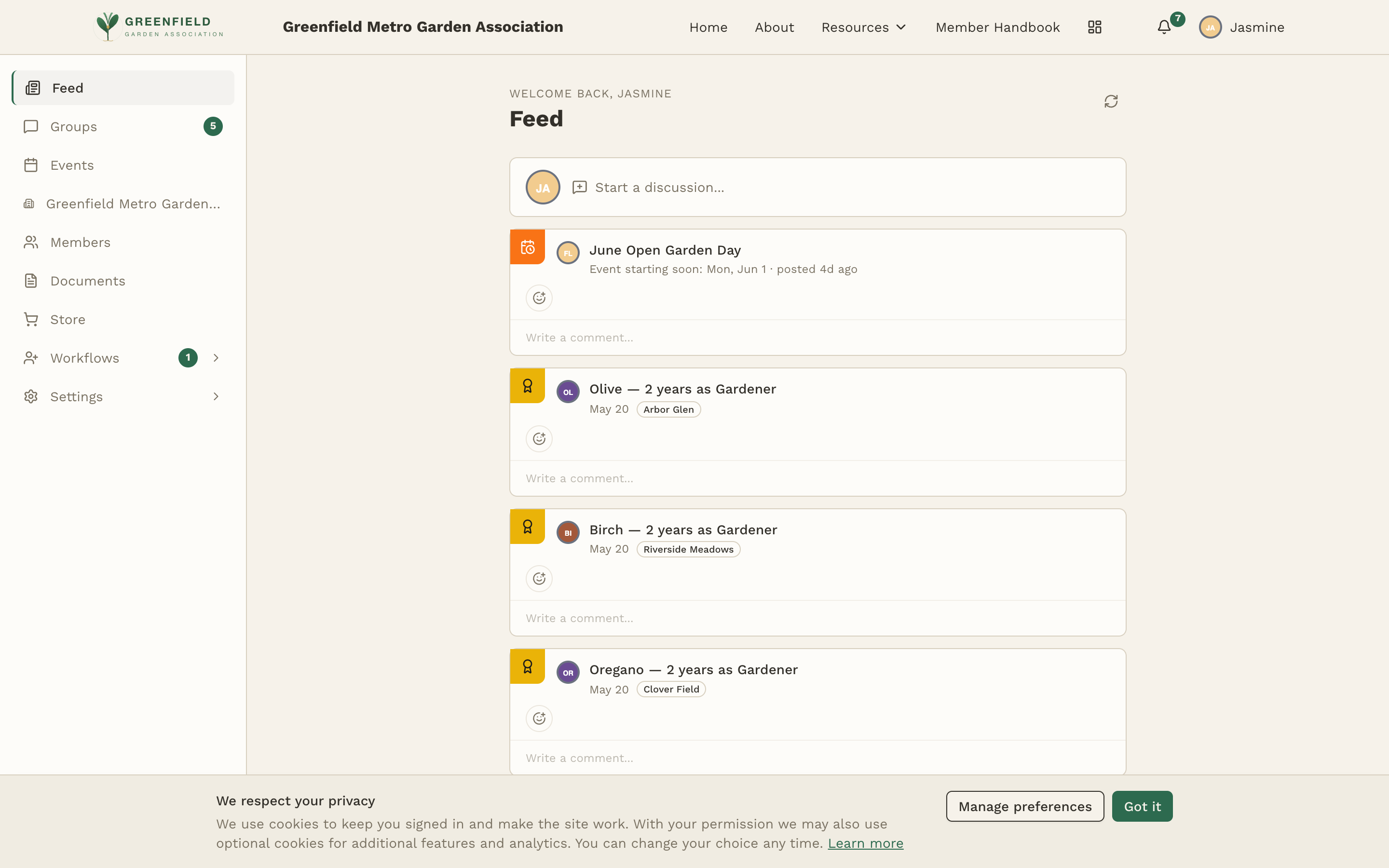
Starting a Discussion from the Feed
The Start a discussion… box at the top of the feed is a shortcut to the group post composer. Click it and you'll be taken to the post creation page, where you pick which group the post belongs in. See Creating a Post for the full flow.
Reacting to a Post
Reactions are the quick way to respond to something without writing a comment. Feed items, group posts, and individual comments each carry their own Add reaction button — a small circular button that sits below the item.
- Click the Add reaction button under the item you want to respond to.
- Pick one of the seven reactions: 👍 👎 ❤️ 😮 😢 😂 😡
- Your reaction appears as a pill under the item, showing the emoji and how many people have chosen it — 👍 3, for example.
Click a pill that already carries your reaction to take it back; the count drops by one and the pill disappears once nobody is left on it. To add your vote to a reaction someone else started, click their pill.
Commenting on a Post
Group posts in the feed show each post's body plus its existing comments, with a Write a comment… box at the bottom of the card.
- Inline comment — Click into the Write-a-comment box and type your reply right from the feed.
- Full thread — Click the post title to open the topic page where you can see every comment, moderator actions (for groups where you're a mod), and use the full rich-text editor. See Discussion Groups.
The feed only shows content from groups and organizational scopes you have access to. If your admin restricts certain groups to specific member types, you won't see posts from those groups.
Feed Item Types
💬 Group Posts
Show the author, member-type badge, group name, post title, body, any reactions, existing comments, and a comment composer.
👋 New Members
"Name joined Chapter" cards with the approver and the chapter the new member was placed into.
🎖️ Officer Changes
"Name appointed as Role" for officer appointments. The card shows which org or committee the role sits in.
🔄 Type Changes
"Name promoted to Type" when members move between types — for example, a new member advancing to full status.
🚪 Leave & Reinstatement
"Name went on Voluntary Leave" and "Name reinstated" cards for members leaving and returning to active status.